Screen-AI: Building a Native macOS App Overnight Without Knowing Swift
Screen-AI: Building a Native macOS App Overnight Without Knowing Swift I don’t know Swift. I’ve never built a macOS application. Last night I started a new project at around 10pm....
Screen-AI: Building a Native macOS App Overnight Without Knowing Swift
I don’t know Swift. I’ve never built a macOS application. Last night I started a new project at around 10pm. By this morning I had a native desktop app that watches my screen, maintains a running AI conversation about what it sees, and transcribes my voice into that same conversation. Roughly seven hours of total effort.
The app is called Screen-AI. I built the entire thing using Claude Code. No code written by hand. No spec. No tests. No prior Swift knowledge.
This would have taken me a month or more on my own — mostly because I’d need to learn Swift and macOS development from scratch. Instead, I shipped a tool I’ll use daily.
What Screen-AI Does
Screen-AI captures your screen on a configurable timer — anywhere from every second to every ten minutes — and sends the screenshot to Claude for real-time analysis. The responses appear in a live conversation sidebar. You can also speak, and your voice is transcribed via OpenAI’s Whisper and fed into the same conversation.
The practical use case: I point it at my browser and it summarizes what’s happening across tabs — email, LinkedIn, Jira, whatever is on screen. It doesn’t need plugins or integrations. It just watches the screen like a human assistant looking over your shoulder.
Core capabilities:
- Timed screen capture — screenshots or video feed at configurable intervals, with the option to capture the entire desktop or follow a specific application’s windows
- AI conversation — captured screenshots sent to Claude with a customizable system prompt; responses appear in a live sidebar with streaming, so you see the AI thinking in real time
- Voice input — real-time audio recording with automatic silence detection that segments speech into chunks, transcribes via Whisper, and feeds the text into the conversation
- Input-aware responses — the AI distinguishes between voice and typed input, responding differently to each
- Change detection — pixel-level comparison skips duplicate frames, with configurable threshold, color tolerance, and region insets so you can ignore parts of the screen that change constantly
- Master/slave networking — offload capture to a second Mac over the local network using Bonjour auto-discovery; no API keys needed on the slave
- Image grid viewer — browse saved screenshots in a grid with a detail viewer, without interrupting the live session
- Conversation logging — optionally save full conversation transcripts to disk for later review
- Force process audio — manually cut off the current audio segment and send it for transcription without waiting for silence
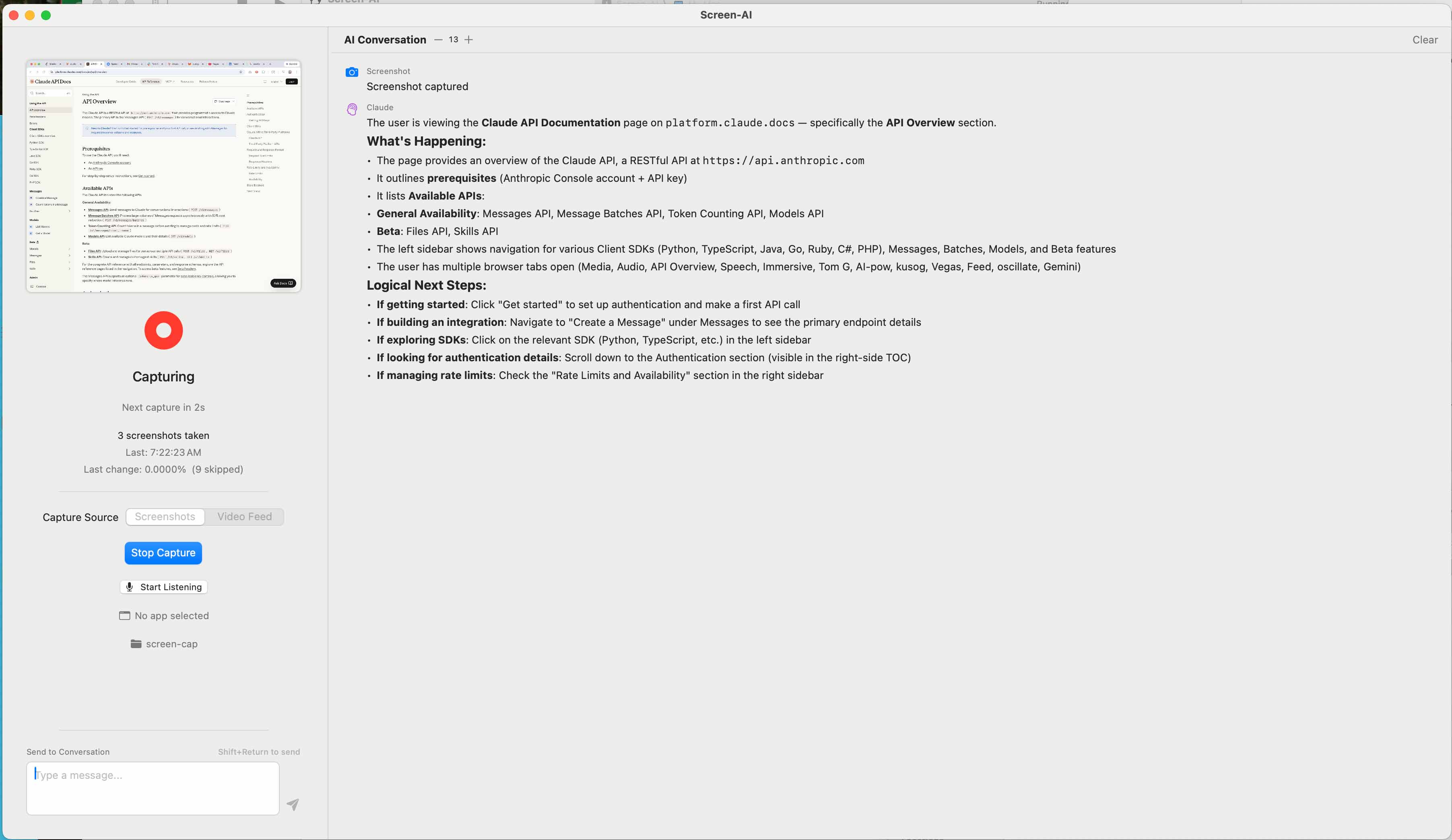 The main interface in action: Screen-AI has captured a browser window showing the Claude API docs. The conversation pane streams Claude’s analysis — it identifies the page, summarizes the available APIs, notes the open browser tabs, and suggests logical next steps. This is the core loop: capture, analyze, converse.
The Technical Stack
Under the hood, this is a SwiftUI application targeting macOS 15.6 (Sequoia), built on the @Observable pattern with three core managers:
ScreenCaptureManager is the central engine — 1,640 lines handling the capture loop, Claude API integration, change detection, and mode coordination. It uses Apple’s ScreenCaptureKit for screenshot-based capture with optional video feed from a webcam or external camera via AVCaptureSession. Before sending each frame to Claude, it runs a pixel-level diff against the previous frame. The comparison algorithm iterates through each pixel’s RGB channels with a configurable color tolerance (default 10 per channel), and only frames exceeding the change threshold (default 0.5% of pixels changed) get sent to the API. Region insets let you crop out the menu bar, dock, or any other area that changes frequently — avoiding wasted API calls on irrelevant pixel noise.
AudioRecordingManager records audio in real time using AVAudioEngine with a 4,096-sample buffer tap. Rather than chopping audio into fixed-duration chunks, it segments when you stop speaking. The silence detection converts RMS levels to decibels and compares against a configurable threshold (default -40 dB). When speech is detected, recording begins to a new WAV file. When silence exceeds the configured duration (default 3 seconds), the segment finalizes and ships to Whisper. Maximum segment length is 60 seconds; segments under 1KB are discarded as noise. A “Process Now” button forces immediate transcription without waiting for silence — useful when you’re mid-thought and want the AI to respond.
NetworkManager enables distributed operation across multiple Macs. A master Mac advertises a Bonjour service (_screen-ai._tcp) and listens for incoming connections. Slave Macs auto-discover the master and connect over TCP using a custom binary protocol. The wire format uses a 13-byte framing header — 1 byte for message type, 4 bytes for payload length, 8 bytes for timestamp — followed by JSON metadata and binary payload data. Message types include screenshot data, audio data, slave status, control commands (start/stop capture, start/stop audio, config updates), and ping/pong heartbeats every 5 seconds. The slave captures and streams; the master runs all AI processing. No API keys needed on the slave machine.
The conversation UI parses Claude’s markdown responses into native SwiftUI views — headings, code blocks, bulleted and numbered lists — using a custom parser rather than an external library. Claude API calls use URLSession.bytes() for streaming, so responses render incrementally as they’re generated. API keys are stored in the macOS Keychain, and folder access persists across app launches via security-scoped bookmarks.
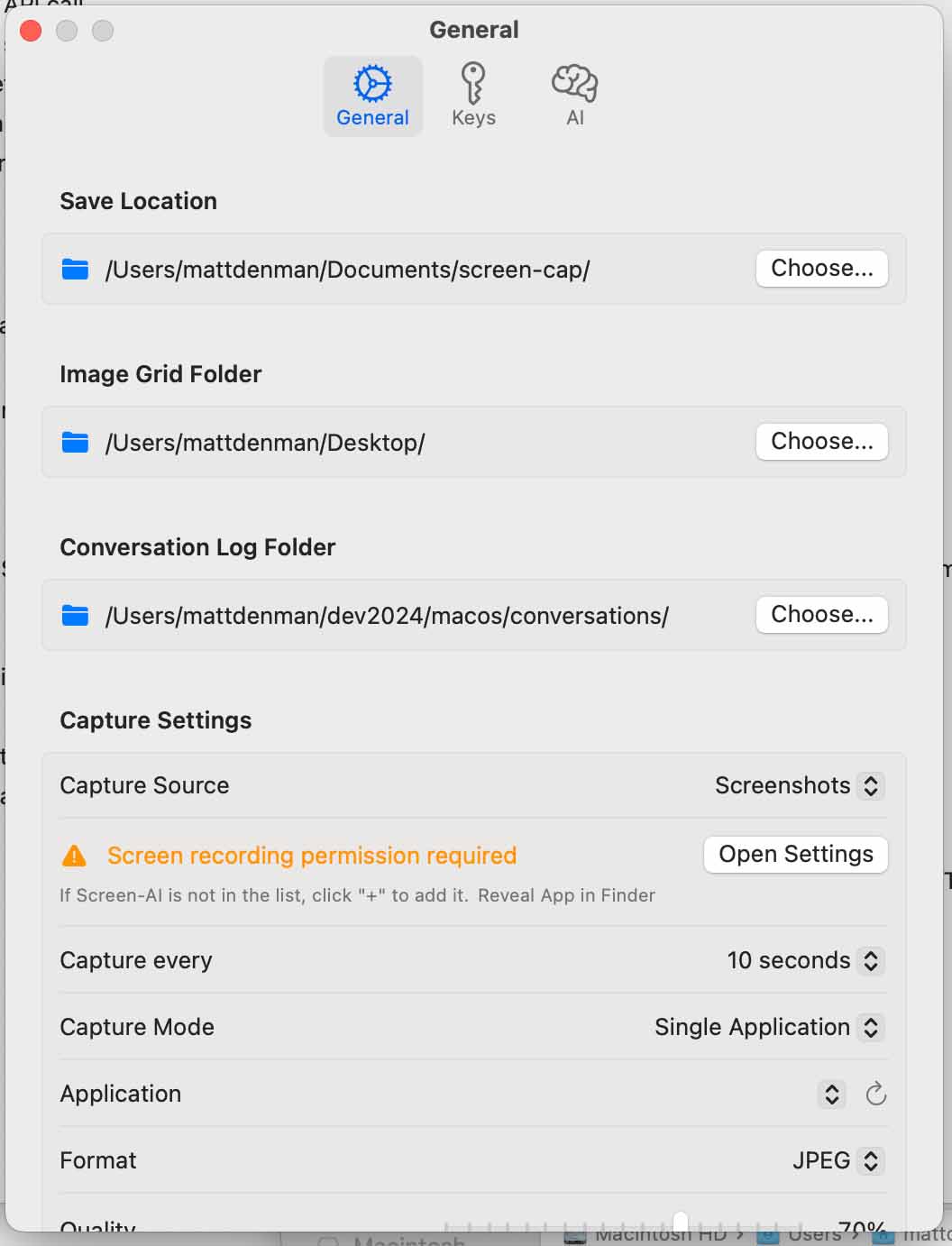 The Settings panel (General tab) exposes the full configuration surface: save locations for screenshots, image grid, and conversation logs; capture source and interval; single-application vs. full-screen mode; and image format. The Keys and AI tabs (visible at top) handle API key storage and system prompt customization.
How I Built It: One Small Feature at a Time
Here’s what I didn’t do: describe the entire application in one prompt and ask Claude Code to build it.
Here’s what I did: one small feature at a time.
Start with a baseline that works. Run it. Confirm it works. Add the next feature. Repeat. The same approach I’ve used in professional software teams for decades — small tickets, tight feedback loops, never straying far from a working state.
The first commit hit at 9:50 PM. The progression looked something like:
- Get a window on screen that captures a screenshot
- Display the screenshot in the app
- Add a timer for periodic capture
- Send the screenshot to Claude’s API and display the response
- Add conversation history so context accumulates
- Add voice recording
- Add silence detection to auto-segment audio
- Add Whisper transcription
- Feed transcriptions into the conversation
- Distinguish voice input from typed input
- Add change detection to skip duplicate frames
- Add configurable capture — single app vs. full screen
- Add networked master/slave mode with Bonjour discovery
- Add the image grid viewer for browsing captured screenshots
- Add conversation logging to disk
- Polish the UI — draggable conversation divider, font size controls, markdown rendering, keyboard shortcuts
Each step was a working application. Each step added exactly one capability. If something broke, the blast radius was one feature — easy to diagnose, easy to fix.
I hit essentially zero bugs. One macOS settings quirk (screen recording permissions) and one networking issue that was fixed in a single conversation. Everything else just worked, every iteration.
Why This Works
This isn’t a story about Swift. I still don’t really know Swift. If you asked me to write a DispatchQueue closure from memory, I’d struggle. But I don’t need to know Swift to build in Swift — not with this approach.
The methodology matters more than the language:
Small increments eliminate compounding errors. When you ask an AI to generate a thousand lines at once, errors in line 50 propagate through lines 51–1000. When you build in small steps, each step validates the foundation before the next layer goes on. The AI never has to reason about more than one new capability at a time.
Working software is the checkpoint. Not “it compiled.” Not “it looks right.” Actually running the app after every change. This is the same principle behind continuous integration, just applied to a conversation with an AI.
You don’t need to know the language to stay in the driver’s seat. I couldn’t write this Swift code, but I could evaluate it. Does the screenshot appear? Does the timer fire? Does the API return a response? Does the voice transcription match what I said? Every feature has an observable outcome. You validate behavior, not syntax.
The AI handles what’s hard for you; you handle what’s hard for the AI. I don’t know Swift’s concurrency model or the ScreenCaptureKit API surface. Claude does. Claude doesn’t know what I want the app to do next or whether the current behavior is correct. I do. The division of labor is clean.
What Surprised Me
The networking. I expected master/slave mode to be the hardest feature. Bonjour discovery, TCP connections, a custom binary wire protocol, streaming screenshots across the network — this is the kind of work that usually involves days of debugging. It took one Claude Code session. The protocol with its 13-byte framing header, heartbeats, and JSON metadata just… worked. Slave captures, master processes. Zero-configuration discovery. No manual IP addresses.
Audio silence detection. Real-time audio processing with configurable dB thresholds and automatic segmentation is non-trivial low-level work. Getting it right on the first pass — including avoiding deprecated CoreAudio APIs that would cause runtime errors on modern macOS — was impressive. The RMS-to-decibel conversion, the silence duration tracking, the automatic WAV file segmentation — all of it landed clean.
Security-scoped bookmarks. macOS sandboxing means apps can’t just remember folder access between launches. Claude Code implemented security-scoped bookmarks correctly the first time, including the encode/decode cycle through UserDefaults. This is the kind of platform-specific detail that trips up experienced macOS developers.
The change detection algorithm. I asked for a way to avoid sending duplicate screenshots. What I got was a full pixel-level comparison engine with configurable color tolerance per RGB channel, region insets to exclude noisy screen areas, and percentage thresholds — complete with detailed comparison info reporting resolution, region bounds, and tolerance used. More sophisticated than what I had in mind, and correct on the first implementation.
Zero regressions. Sixteen features added sequentially over seven hours, each building on the last, with no regressions. This isn’t magic — it’s the natural result of small increments. But it’s still remarkable to experience.
The Result: A Daily-Use Tool
The app I use most looks like this: Screen-AI pointed at my browser, capturing every 30 seconds, with voice input active. I browse email, LinkedIn, Jira, documentation — and the AI maintains a running summary of what’s happening across everything on screen. When I want to ask about something specific, I just speak. The AI already has the visual context.
It doesn’t need browser extensions, API integrations, or plugins for each service. It works with anything that renders pixels. Video calls, terminal sessions, design tools — if it’s on your screen, Screen-AI can see it and talk about it.
The keyboard shortcuts make it fast to operate: Cmd+R to start/stop capture, Shift+Cmd+L to toggle voice, Shift+Cmd+G to browse the image grid. Switch between normal, master, and slave modes with Shift+Cmd+1/2/3. Everything accessible without touching the mouse.
The System Prompt: Where Behavior Lives
The most important configuration in Screen-AI isn’t the capture interval or the image format. It’s the system prompt — the instruction text in the Settings → AI tab that gets sent to Claude with every API call.
This matters because Screen-AI sends three distinct types of input to the same conversation, and the AI needs to understand what each one means:
- Screenshots arrive as raw images with no additional text — just the visual data
- Voice input arrives prefixed with
"user spoke:"— the transcribed audio from Whisper - Typed text arrives prefixed with
"User typed into text area:"— manual text from the conversation sidebar
Without a system prompt, Claude has no guidance on how to handle these differently. It might write a paragraph about every screenshot, or treat a voice question the same as a typed command. The system prompt is where you define the AI’s personality, its level of detail, what it should pay attention to in screenshots, and how it should respond to each input type.
For example, you might tell it: analyze screenshots concisely, focusing on what changed since the last capture. When the user speaks, treat it as a question about what’s currently on screen and respond conversationally. When the user types, treat it as a direct instruction.
Or you might tell it something completely different. That’s the point — the system prompt is what turns Screen-AI from a generic screenshot-to-AI pipeline into a tool shaped for your specific workflow. Monitoring a video call? Tell the AI to track action items and speaker topics. Watching a terminal session? Tell it to flag errors and suggest fixes. Reviewing design mockups? Tell it to evaluate layout consistency and accessibility.
The system prompt persists across app launches (stored in UserDefaults) and applies to every API call — screenshot analysis, voice responses, and typed text responses alike. It’s the single lever that determines whether Screen-AI is useful or noisy. Getting it right is the difference between an AI assistant that adds value and one that just generates text about your screen.
The Honest Accounting
Seven hours. No Swift experience. A native macOS application with screen capture, AI conversation, voice transcription, network distribution, conversation logging, and a polished UI with keyboard shortcuts and streaming responses.
But the seven hours weren’t effortless. This was high-intensity orchestration work the entire time — deciding what to build next, evaluating output, testing behavior, course-correcting. The cognitive load is real. As I’ve written before, AI-assisted development often produces more exhaustion than traditional coding because you’re doing pure decision-making for hours without the natural breaks that come from looking up API docs or debugging syntax.
And the approach itself has prerequisites. Thirty-four years of building software taught me to decompose problems into small independent steps. Knowing what to build next — the sequence that minimizes risk and maximizes feedback — that’s the human skill that makes the AI effective. Claude Code didn’t decide to add change detection before networking. I did, because I knew the capture loop needed to be solid before adding distribution complexity.
AI coding works. But it works best when you treat it like good agile development: small increments, fast feedback, working software at every step.
Source Code
Screen-AI is open source and available on GitLab. Clone it, build it in Xcode, add your API keys, and point it at your screen. The README covers setup, configuration, and all the keyboard shortcuts.
The source is also a case study in what Claude Code produces when guided by disciplined incremental development. Every file was AI-generated. Every feature was human-directed.
git clone https://gitlab.com/kusog-opensource/screen-ai.git
cd screen-ai
xcodebuild -scheme Screen-AI -destination 'platform=macOS' build